Moonlight Setup Guide
Complete step-by-step instructions to set up Moonlight and play UMVC3 on datHazy's servers
Moonlight is an open source alternative to Parsec that has better compatibility and runs smoother on a larger amount of PC hardware with no account needed. This guide focuses on Windows, but setup is similar on other platforms.
Direct installer link from Moonlight's GitHub:
MoonlightSetup-6.1.0.exe
Download and run the installer, following the on-screen instructions.

Moonlauncher is a companion program that makes switching between datHazy Moonlight servers much easier. Launch any station (Lobby, Tournament) from within the program or through browser links. Program connection options support automatic recommended settings or your current Moonlight config.
How to use:
• Installer: Run MoonlauncherInstaller.exe → launch stations from the program or browser links.
• AHK ZIP: First, download and install AutoHotkey v2.0. Then unzip datHazyMoonlauncher-AHK.zip → open "Lobby" or "Tournament" folder → double‑click station.
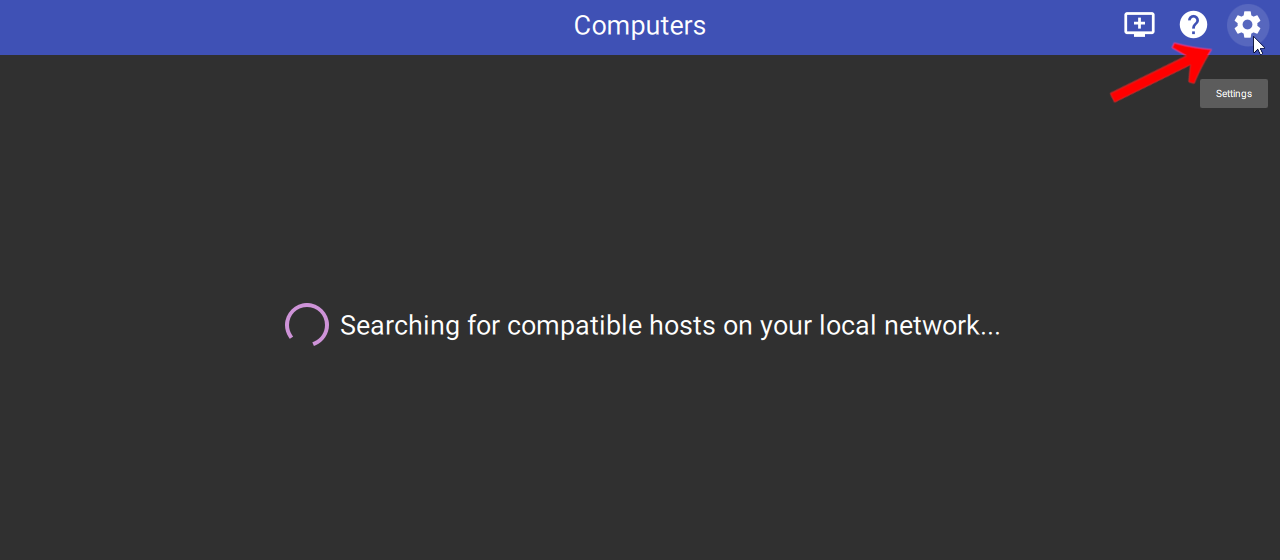
After installation, open Moonlight and go to Settings.
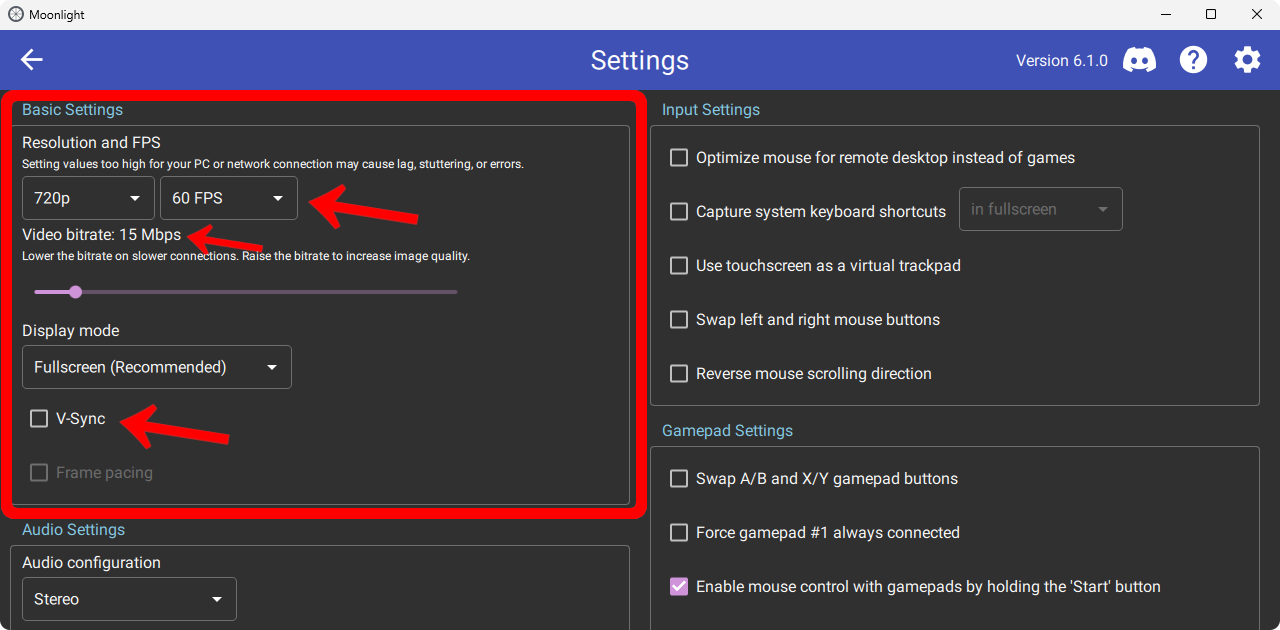
Basic Settings:
FPS: 60
Video Bitrate: 15Mbps
V-Sync: OFF
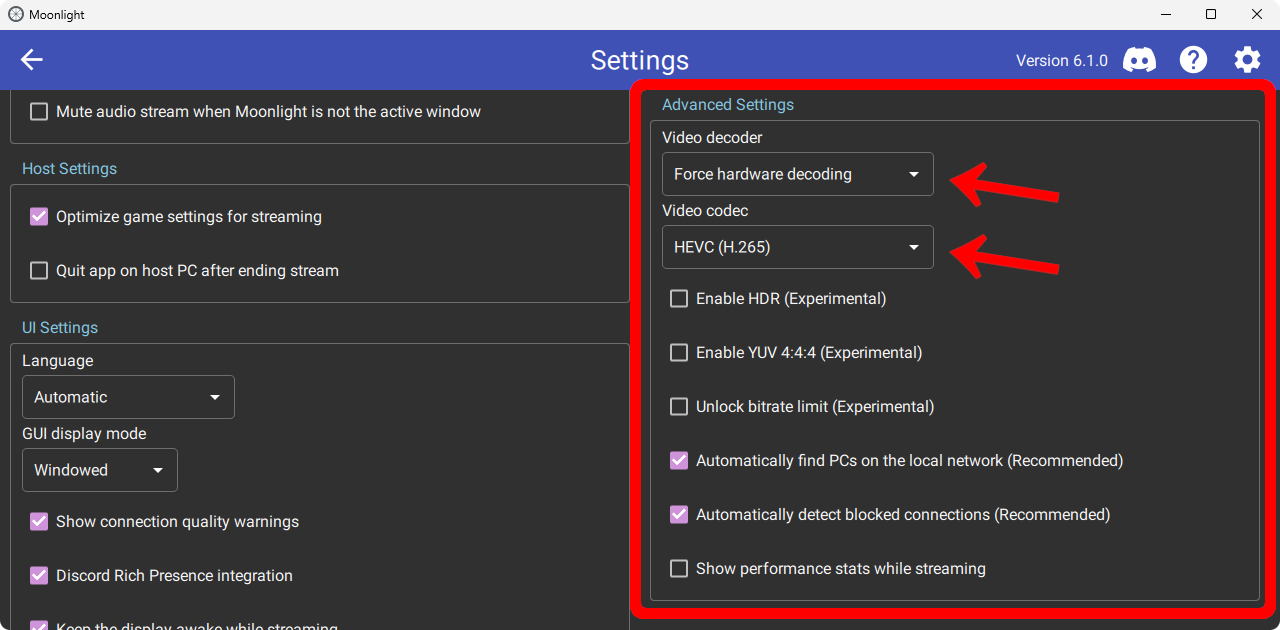
Advanced Settings:
Video Codec: HEVC (H.265)
Important: After pairing successfully, do not delete this PC from your Moonlight list. If deleted, you'll lose your pairing and need to re-pair through chat/Discord.
🏆 Tournament Players: When switching stations, use Moonlauncher for a list of stations that you can simply click on. If choosing to avoid Moonlauncher/AHK, click "Add PC" or press Ctrl+N to connect to the new station address. The new station will overwrite the previous one, but your pairing stays intact.When joining the stream or bracket server:
- Click "Add PC" in Moonlight (or press Ctrl+N)
- Enter stream.dathazy.com as the IP addressFor tournaments, use the provided address (e.g., pair.dathazy.com or station2.dathazy.com)
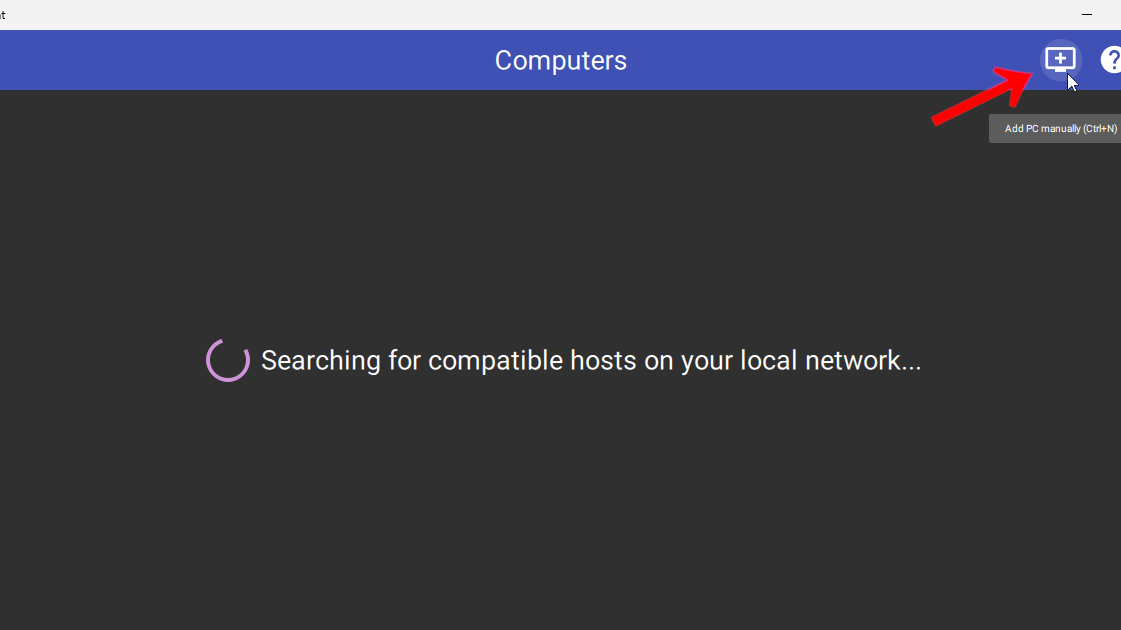

After adding the PC:
- Click on the newly added PC
- Type your pairing PIN in Twitch chat and wait for approvalFor tournaments: Enter your PIN in the #match-coordination channel in the THC Discord


Once paired:
- Click on the newly paired PC
- Click on UMVC3 to start playing

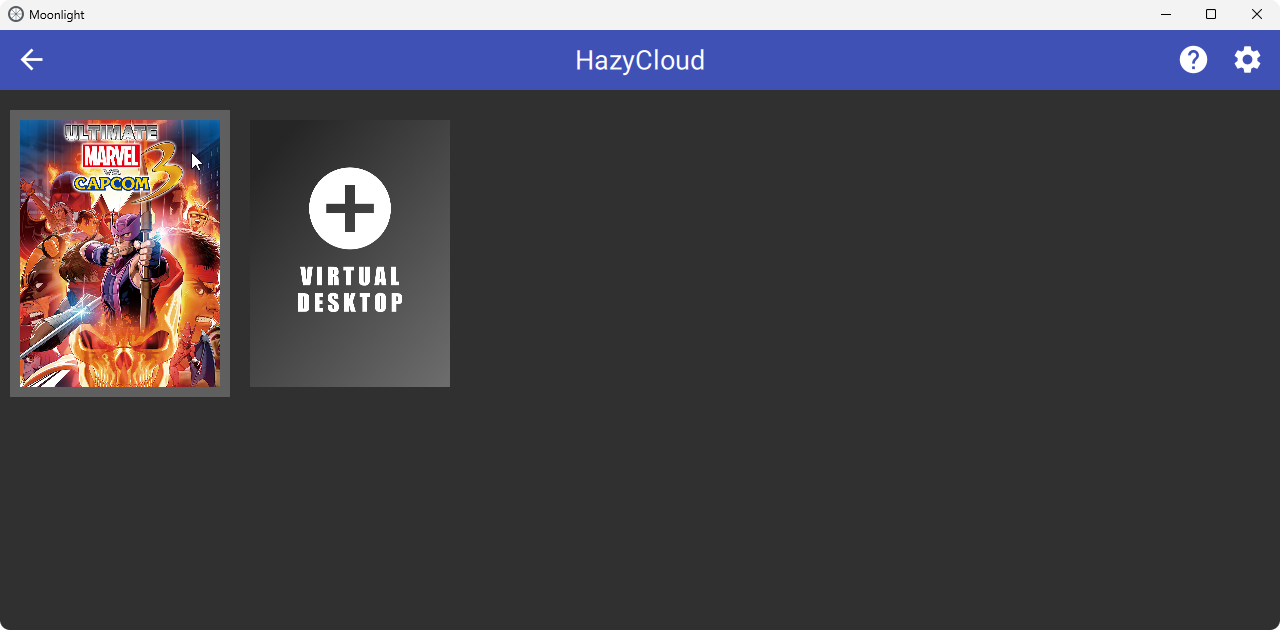
You're all set! Make sure your controller is connected and Moonlight is the active window.
Need more help? Check out these resources:
Official Moonlight WebsiteGitHub RepositoryTHC Discord